
How to Build Your Profile for Success: New Features in the MFR Directory

People searching for an MFR therapist decide quickly, and a profile that makes it easy to book wins the appointment. Two features in your directory dashboard help with that: a booking link that adds a Make an appointment button to your profile, and a Leads Manager that lets you review and export the people who reach out. This post walks through both step by step, then closes with a short checklist for the rest of your profile.
Step 1: Open your profile
Your profile is a few clicks from the Account page.
- In the left-hand menu, click Account.
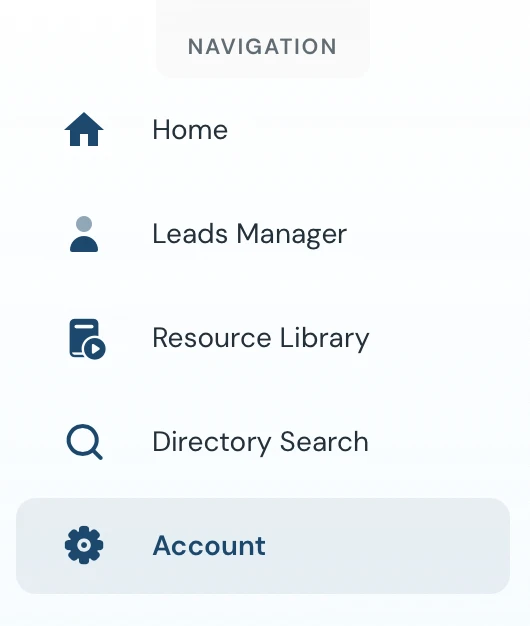
- Select the Users tab at the top of the page.

- Find your name in the list. Each row shows your practice, your role, a date and a status. Published means your listing is live in the directory.

- Click the three dots at the right of your row and choose Profile. The menu also offers Edit and Unpublish; leave Unpublish alone unless you want to hide your listing.

Step 2: Add your booking link
A booking link adds a Make an appointment button to your profile, so people who find you can schedule without a phone call.
- On your profile, find the Contact card and click the pencil icon in its top-right corner.
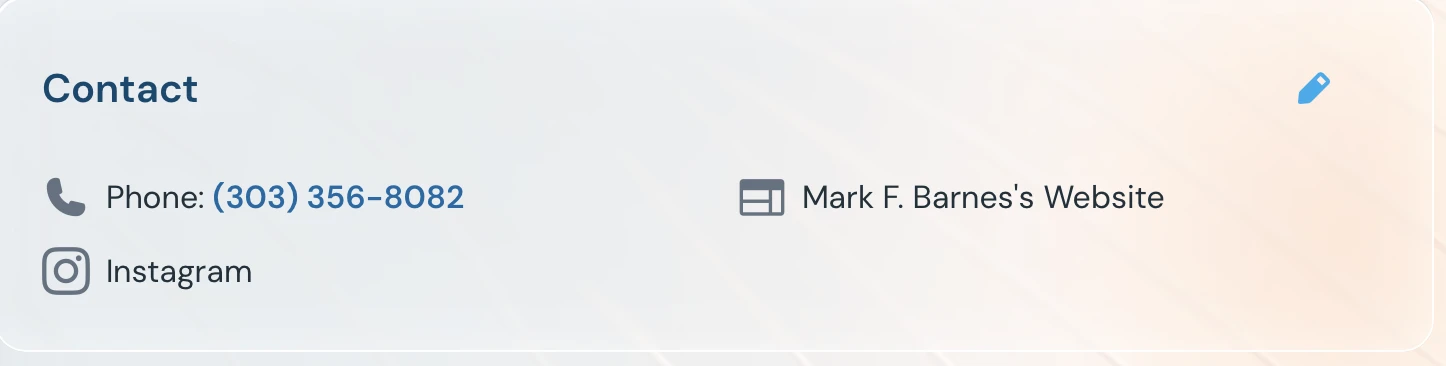
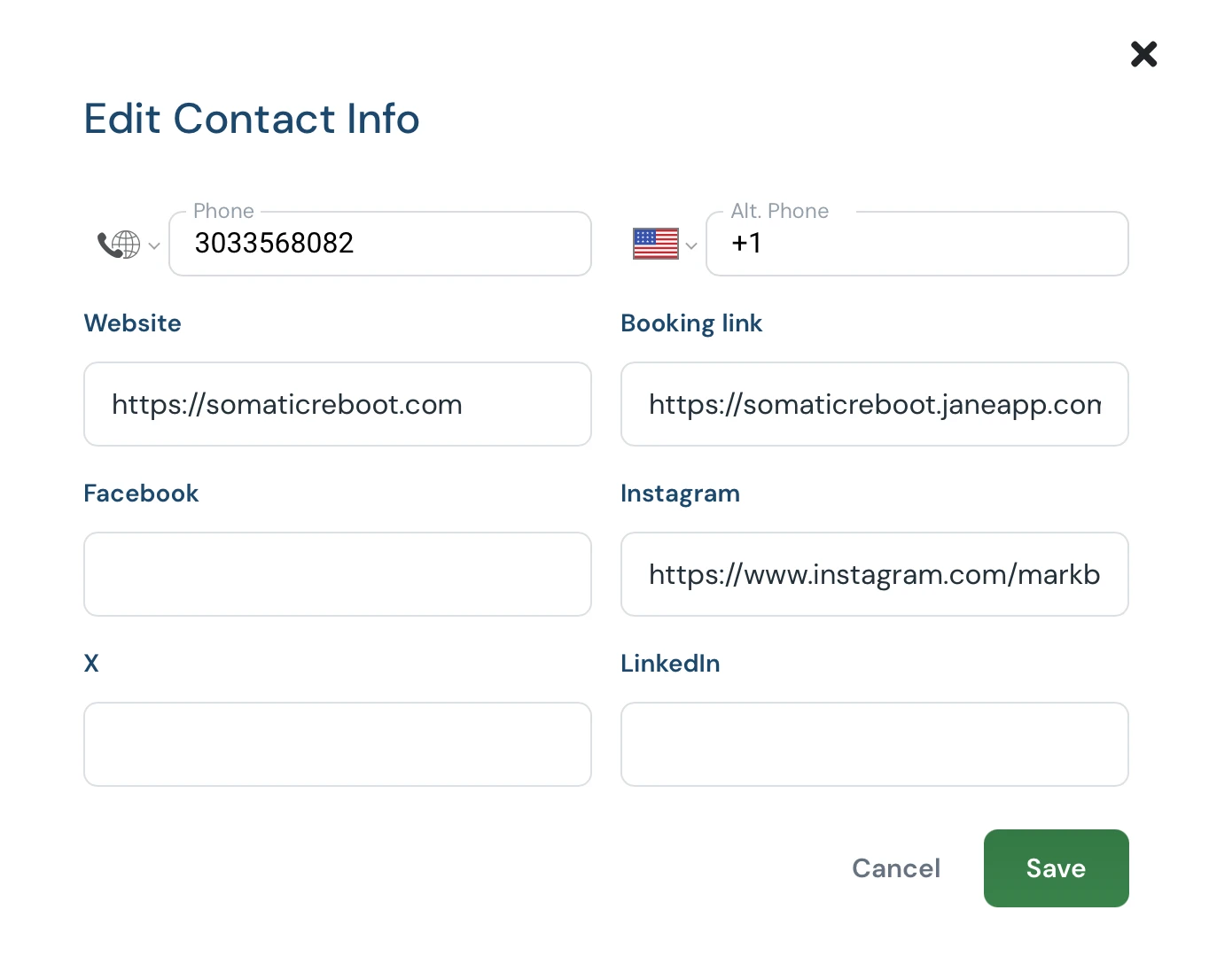
- In the Edit Contact Info window, paste your full scheduling page address into the Booking link field. Include the https:// at the start (for example, your Jane App page). This same window holds your phone, alternate phone, website and social links, so it is a good moment to review those too.
- Click Save. Your link is not stored until you do.
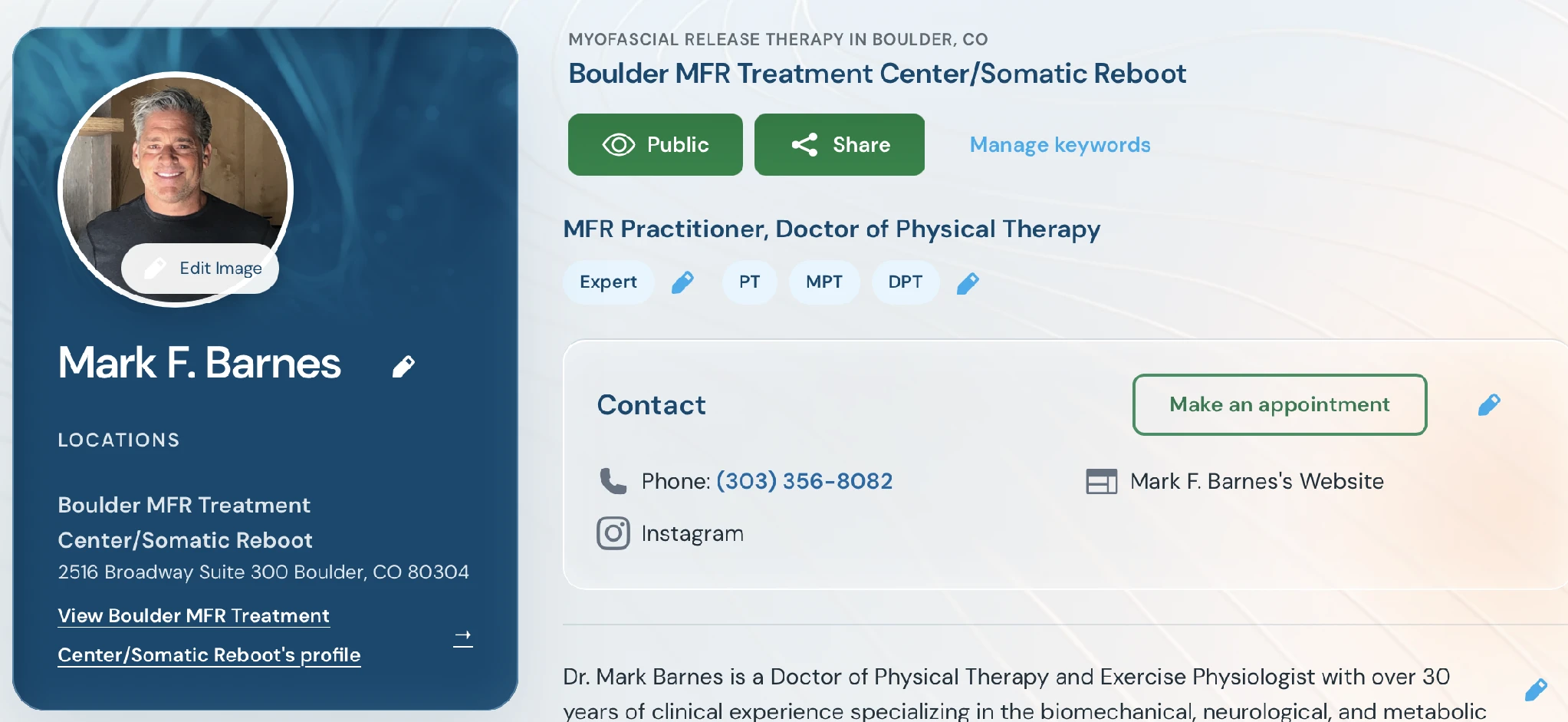
- Check the result. A Make an appointment button now appears next to your Contact details. Click it once to confirm it opens your booking page.
Step 3: Fill in the rest of your profile
A booking button works best on a profile that looks finished. While you are on your profile page, review each of these:
- Photo: use Edit Image to add a clear, current headshot.
- Name and credentials: use the pencil icons to confirm how your name and credentials appear.
- Contact details: confirm your phone number, website and any social links (Facebook, Instagram, X, LinkedIn). Leave blank what you do not use.
- Bio: use the pencil beside your bio to describe your training, your experience and the people you help most.
- Keywords: select Manage keywords and choose terms that reflect what you want to be found for.
- Visibility: confirm your profile shows as Public, and use Share to pass your profile along.
Keep track of your leads
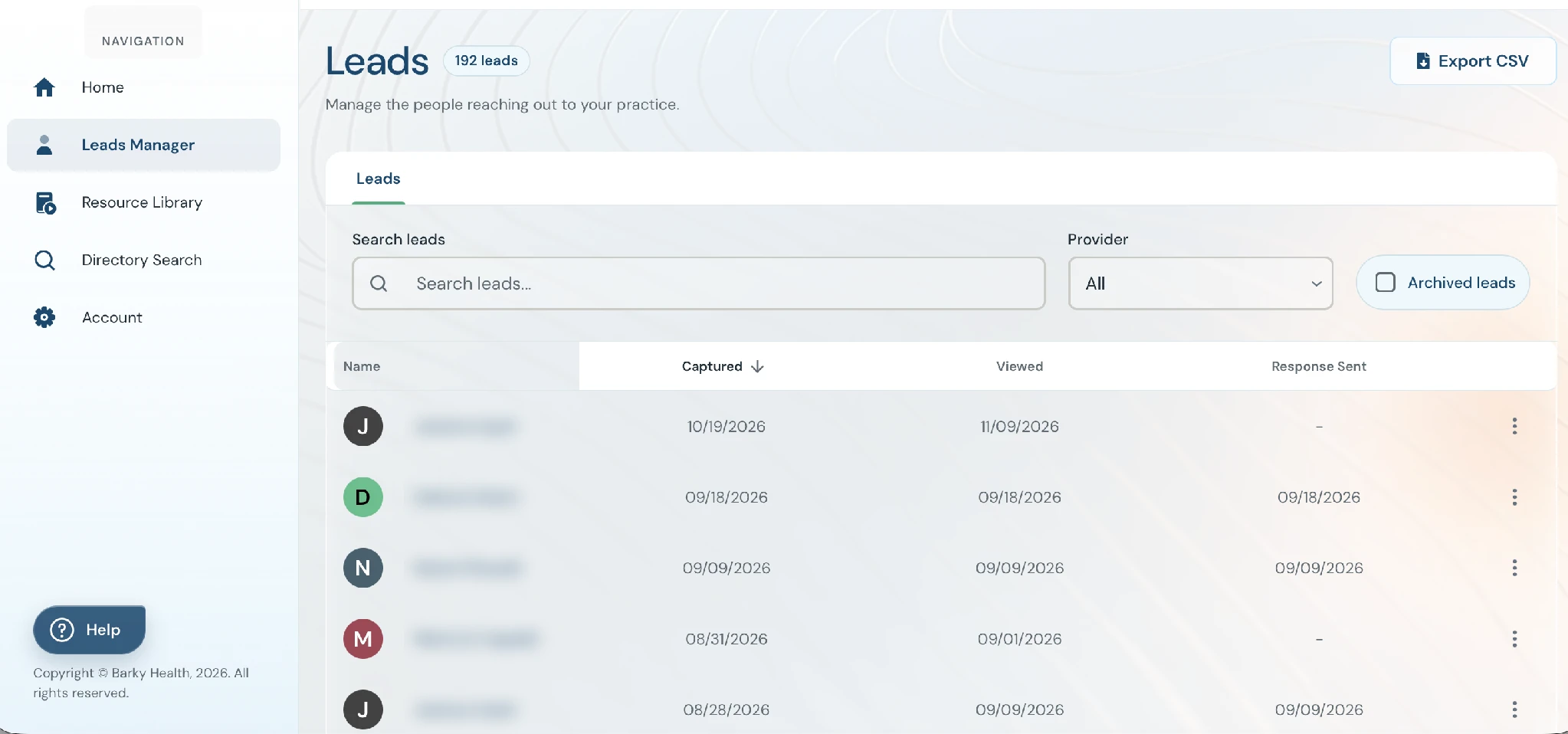
Every person who reaches out through your profile appears in the Leads Manager, and you can export the full list to a CSV file. Open it from the left-hand menu.
The page shows your total lead count and a table with four columns:
- Name: the person who reached out.
- Captured: the date the lead came in.
- Viewed: the date the lead was viewed.
- Response Sent: the date a response went out. A dash means no response is recorded yet.
A few tools help you work the list:
- Type a name into Search leads to find someone fast.
- Use the Provider dropdown to filter by practitioner, which helps clinics with more than one provider.
- Tick Archived leads to see leads you have archived.
- Click the three dots on a row for more options.
- Click Export CSV at the top right to download your leads for your own follow-up lists or records.
A quick habit: scan the Response Sent column for dashes. Those are the people still waiting to hear from you. Lead details are personal information, so store exported files somewhere secure.
Your profile checklist
- Your status reads Published.
- Your booking link is added, saved and tested.
- Your phone, website and social links are current.
- Your photo, credentials and bio are up to date.
- Your keywords reflect what you want to be found for.
- You check the Leads Manager regularly and follow up on every lead.
A complete profile and a quick response are the two things you control. Questions about any of these steps? Email support@barkyhealth.com.
Keep reading

The Benefits of Myofascial Release for Stress Reduction
Stress is clearly a common experience for many people. And, stress can lead to a wide range of physical and mental health symptoms.

Treating Chronic Pain with Myofascial Release Therapy
Pain is deeply complex. It impacts and is influenced by every aspect of our well-being.

Myofascial Release and its Benefits for Digestion
Myofascial release (MFR) is a manual therapy technique that involves applying sustained pressure to the fascia.